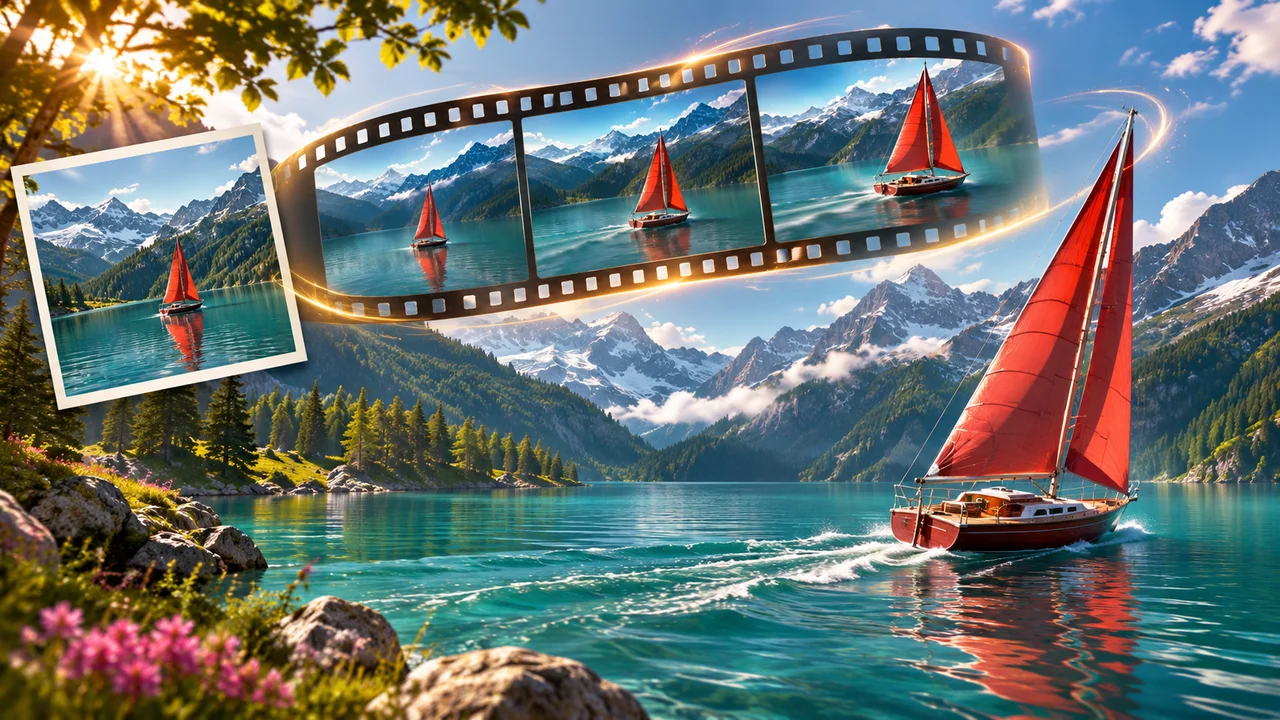
Image-to-video generation starts with a still image, but the prompt is mainly about motion. The image already tells the model what the subject looks like. Your job is to describe what moves, how the camera behaves, how quickly the action happens and where the shot should end.
Imagine AI’s Image to Video workspace lets you upload a start frame and choose from the configured video models. Depending on the selected model, you may also be able to add a last frame, choose duration, select resolution and enable audio.
Choose a strong first frame
The first frame is the visual contract for the clip. Use an image with:
- a clear main subject;
- a stable composition;
- enough space for the requested movement;
- lighting that makes edges visible;
- a background that does not compete with the action.
Portraits, product photographs, illustrations and landscapes can all work. A very blurry image, a subject cut off at the edge or a crowded scene gives the video model less information about what should remain stable.
If you want to generate the still image first, use the AI image generator, then send the result to the image-to-video workflow.
Write a motion-first prompt
A useful structure is:
The camera [camera movement] as [subject action]. [environmental motion]. [speed and timing]. Keep the subject’s appearance and the original composition stable.
For example:
The camera slowly pushes in as the woman turns toward the window and smiles. Curtains move gently in the morning breeze and dust particles drift through the sunlight. Natural, restrained motion over 8 seconds. Keep her face, clothing, room layout and color palette consistent.
Do not spend the whole prompt describing the static image again. Add only the visual facts needed to control the movement or preserve the subject.
Camera vocabulary that helps
Use one primary camera move for the first attempt:
- locked-off: the camera stays still while the subject moves;
- slow push-in: the camera moves gradually closer;
- pull-back: the camera reveals more of the scene;
- pan: the camera turns horizontally;
- tracking shot: the camera follows a moving subject;
- orbit: the camera moves around the subject;
- rack focus: focus shifts from one depth plane to another;
- handheld: small natural camera movement, used carefully.
The camera direction should agree with the still image. If the subject is close to the right edge, a fast camera move toward the right may leave no room for the model to continue the shot.
Describe subject and environment motion separately
A video can feel frozen when the prompt describes only the camera. It can also become chaotic when every object is told to move. Separate the layers:
- subject: “the paper airplane glides forward and tilts slightly”;
- environment: “cloud shadows move slowly across the field”;
- camera: “the camera tracks beside the airplane”;
- timing: “the motion begins gently and reaches a smooth midpoint by the final second.”
Choose one or two environmental movements. Wind, rain, smoke, water, cloth and light can add life, but too many independent actions make continuity harder.
Using a last frame
A first and last frame can give the model a defined destination. This is useful for:
- product reveals;
- transitions between two locations;
- before-and-after transformations;
- seamless loops;
- a character moving from one pose to another.
The two frames should be compatible. Keep the subject identity, perspective and lighting direction coherent. If the start frame is a close-up and the end frame is a wide aerial view, the model must invent a large amount of camera and scene information.
Try a prompt such as:
Begin with the product centered on the table in the first frame. Slowly rotate the camera to reveal the side profile and finish on the composition shown in the last frame. Keep the product shape, label and table lighting consistent. Smooth commercial product motion, no extra products or text.
Model and duration choices
Use the model picker as the source of truth for available durations and resolutions. Imagine AI shows the estimated credit cost before submission, and the options can differ between Seedance 2.5, Kling 4.0, Veo 3.1, Wan 3.0 and other configured models.
As a general workflow:
- use a short clip to test the motion idea;
- switch to a higher resolution only after the composition works;
- enable audio when dialogue, sound effects or music are part of the shot;
- use a longer duration only when the action needs it;
- keep the first test simple so you can tell which instruction caused a problem.
Four prompts to try
Animate a portrait
Locked-off camera. The subject blinks naturally, turns their head slightly toward the light and gives a small relaxed smile. Hair moves gently in the breeze. Keep facial identity, hairstyle, clothing, background and framing unchanged. Subtle realistic motion, 6 seconds.
Animate a product photograph
Slow three-quarter camera orbit around the bottle as a narrow highlight moves across the glass. Keep the bottle, cap, label and table position stable. Soft studio lighting, clean luxury advertising style, no extra objects, 5 seconds.
Animate an illustration
The illustrated train moves slowly through the landscape while clouds drift from left to right and small trees sway gently. Preserve the original illustration style, colors and character design. Smooth lateral camera track, no new characters, 8 seconds.
Create a transition
The camera travels forward through the doorway in the first frame and arrives at the room shown in the last frame. Keep the architecture, lighting direction and color palette coherent. Smooth cinematic transition with no sudden cuts.
Common image-to-video problems
The subject changes identity. Simplify the action and repeat the attributes that must remain fixed.
The camera moves too much. Start with a locked-off or slow push-in prompt. Add an orbit or tracking move only after the basic animation works.
Hands or objects deform. Reduce the number of interacting subjects and avoid asking for several precise actions in one short clip.
The clip feels static. Add a specific subject motion and one environmental motion instead of repeating style adjectives.
The last frame is not respected. Make the start and end compositions compatible and describe the transition between them.
Start animating a still image
Open , upload a clear first frame, choose a model and write a motion-first prompt. Use the first result to judge movement and continuity before spending credits on a longer or higher-resolution version.
Runway’s is a useful reference for motion, camera and timing language. Google’s describes reference images, first/last-frame transitions and native audio as model capabilities that can inform more advanced workflows.
