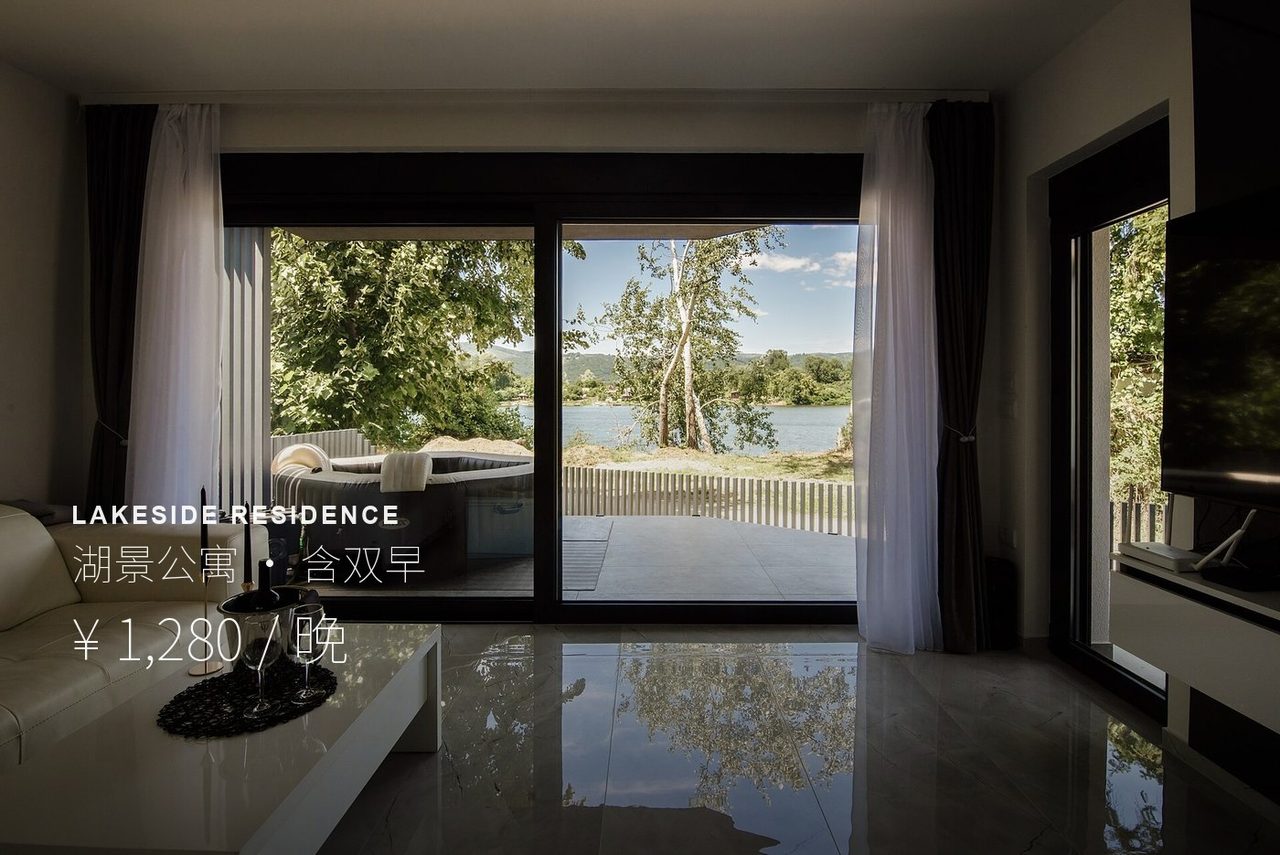
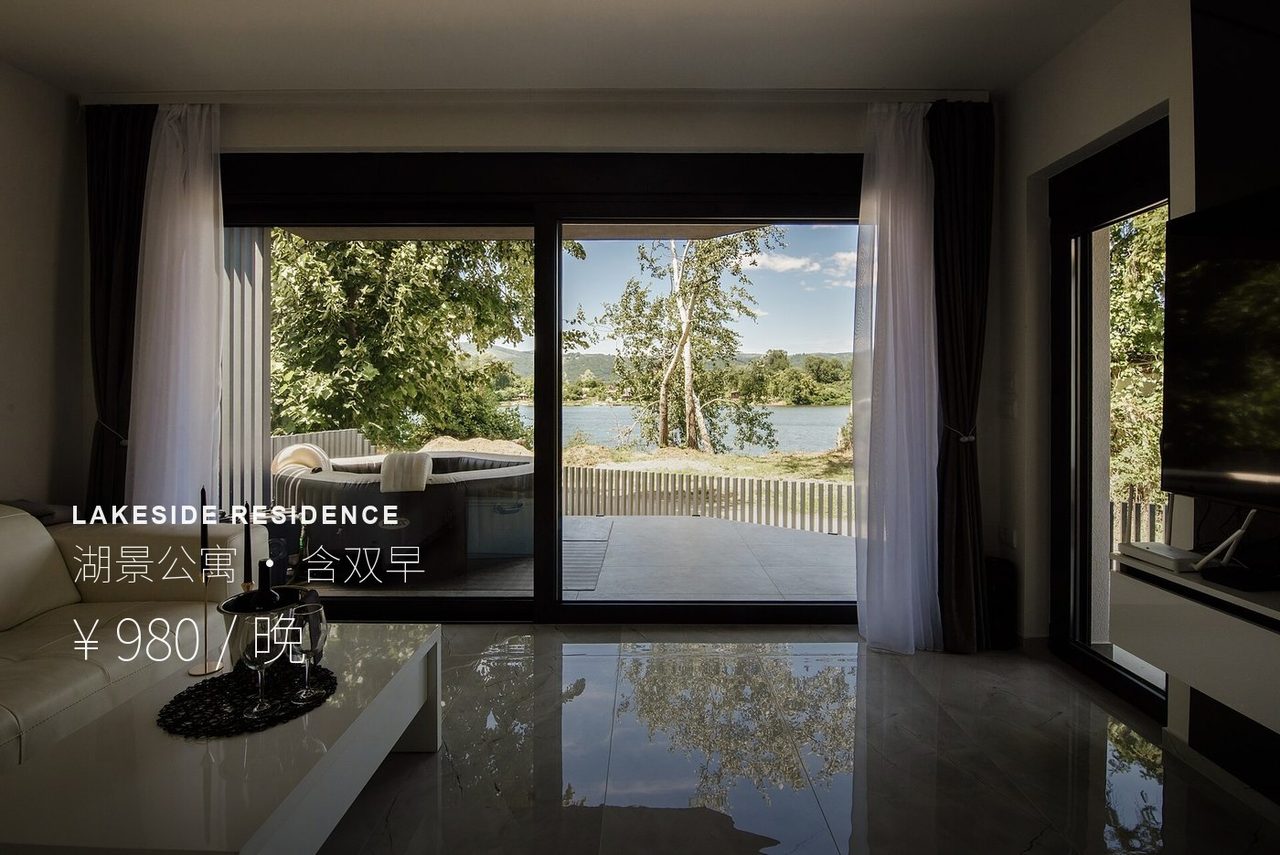
AI text replace · listing price
Only the price and wording change; font, position and background stay
Upload an image with text, say which line to change and what it should say. The font, colour and layout stay — only the wording changes.
Switch to another tool — the current picture comes along.
See what each tool does before you start.
Only the price and wording change; font, position and background stay
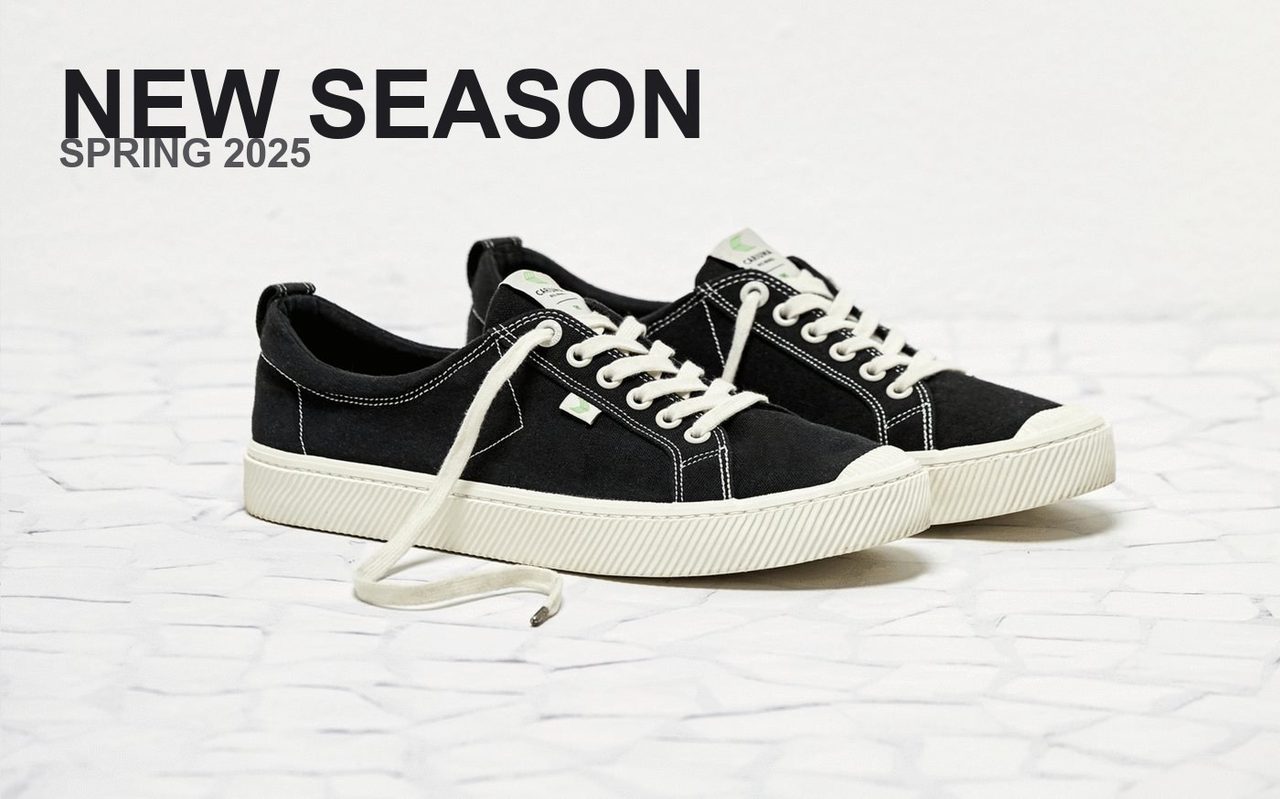
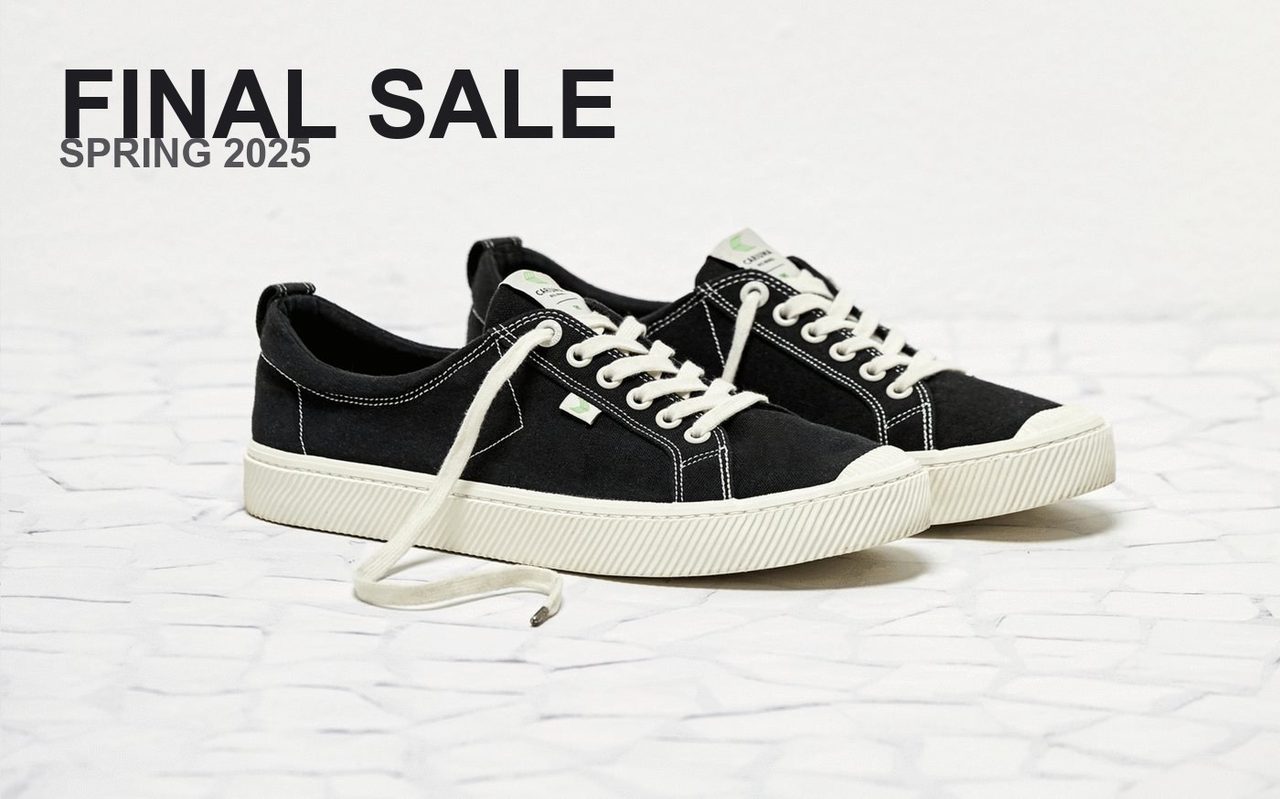
The headline is new but weight and position follow the original
The original font style, weight, colour, letter spacing and perspective are reused, so the text sits in the picture.
The subject, background and framing stay exactly as they were.
Turn one poster into English, Japanese and more without rebuilding the layout.
Pick a photo, or start from one of the examples below.
Choose the options you need; the prompt can stay empty.
Check the result and download it when you are happy.
This focused page uses the same editing flow as the AI Image Editor.
Upload or import a relevant example
Upload a JPG, PNG, or WEBP file, or start with an example selected for this tool.
Choose Replace Text and refine the request
Use a preset for the current tool and add a specific instruction when needed.
Generate, compare, and continue editing
The result joins the version timeline so you can restore the original, use another tool, or export the active version.
This page also covers these common tasks and search intents.
Posters, listings, product shots, menus and packaging. The clearer the text and the less it is obscured, the more natural the replacement.
The instruction asks the model to reuse the original font style, weight, colour and layout. Add specifics in the notes box, such as “keep the gold outline”.
Yes — give the old copy and the new copy. For long or tightly packed text, generate and then check line breaks and spacing.
Yes, as long as the original text is readable. Strong perspective and shadowed lettering make the match harder; straight-on, evenly lit photos work best.
Pixels are fine — a screenshot or a photo both work. A PDF must be exported as an image first, since the tool edits the picture, not the document.
Upload an image, select the current tool, use a preset or add a specific instruction, and generate. The result joins the version timeline for continued editing or export.
Browse every image tool, or start from a blank prompt in the AI Image Generator.