Imagine AI
  • Prompts
    PricingShowcasesBlog
Imagine AI
Imagine AI

Imagine AI is an independent workspace for creating images and videos with third-party models, including GPT Image 2, Seedance 2.5, Veo 3.1, and Kling 4.0. The model providers do not operate or endorse Imagine AI.

Explore
CreateFeaturesPricingFAQ
Video Tools
AI Video GeneratorText to VideoImage to VideoReference to VideoVideo Models
Image Tools
All Image ToolsText ReplaceObject RemovalPerson EditStyle TransferExpand ImageOld Photo Restorer
Resources
PromptsShowcasesBlogContact Support
© 2024 Imagine AI, All rights reserved
Privacy PolicyTerms of ServiceAcceptable Use Policy

Product Photography

Upload a product on any background, choose a product photography preset or describe the surface, backdrop and lighting, then generate a commercial scene.

Unified AI editing workspace

AI Image Editor

Remove objects, replace text, change backgrounds, restyle outfits, expand photos, and enhance images in one workspace.

Image editor

Try an example · click to open it in the editor

Product photo

Create polished product scenes while preserving labels and product details.

Quick presetsClick to fill, then customize

Your original stays intact. Continue editing from any version.

More image tools

Switch to another tool — the current picture comes along.

AI Watermark RemoverErase watermarks, logos and captions, and rebuild what was underneath.→Expand ImageExtend a photo beyond its frame to a wider or taller composition.→Change BackgroundReplace a photo background while preserving the subject and lighting→EnhanceImprove clarity, texture and detail in blurry or low-quality images→Remove BackgroundIsolate the subject and create a transparent background image→Restore Old PhotoRepair scratches, creases, dust and fading in family photos.→Change OutfitUpload a person and describe a new outfit to create a restyled version.→Room DesignRedesign an interior while keeping its walls, windows and camera angle.→Replace TextSwap the wording on an image while the original typography stays.→Remove ObjectsErase clutter, stains, strangers and unwanted background.→Edit PersonPreview a new hair colour, hairstyle or off-face accessory.→Style TransferRepaint a photo as oil painting, anime or illustration.→Image CropperCrop to any ratio with a draggable frame. Nothing is uploaded.→Image CompressorShrink JPG, PNG and WebP files without uploading them anywhere.→Image Format ConverterConvert between PNG, JPEG and WebP in your browser.→

Before and after

See what each tool does before you start.

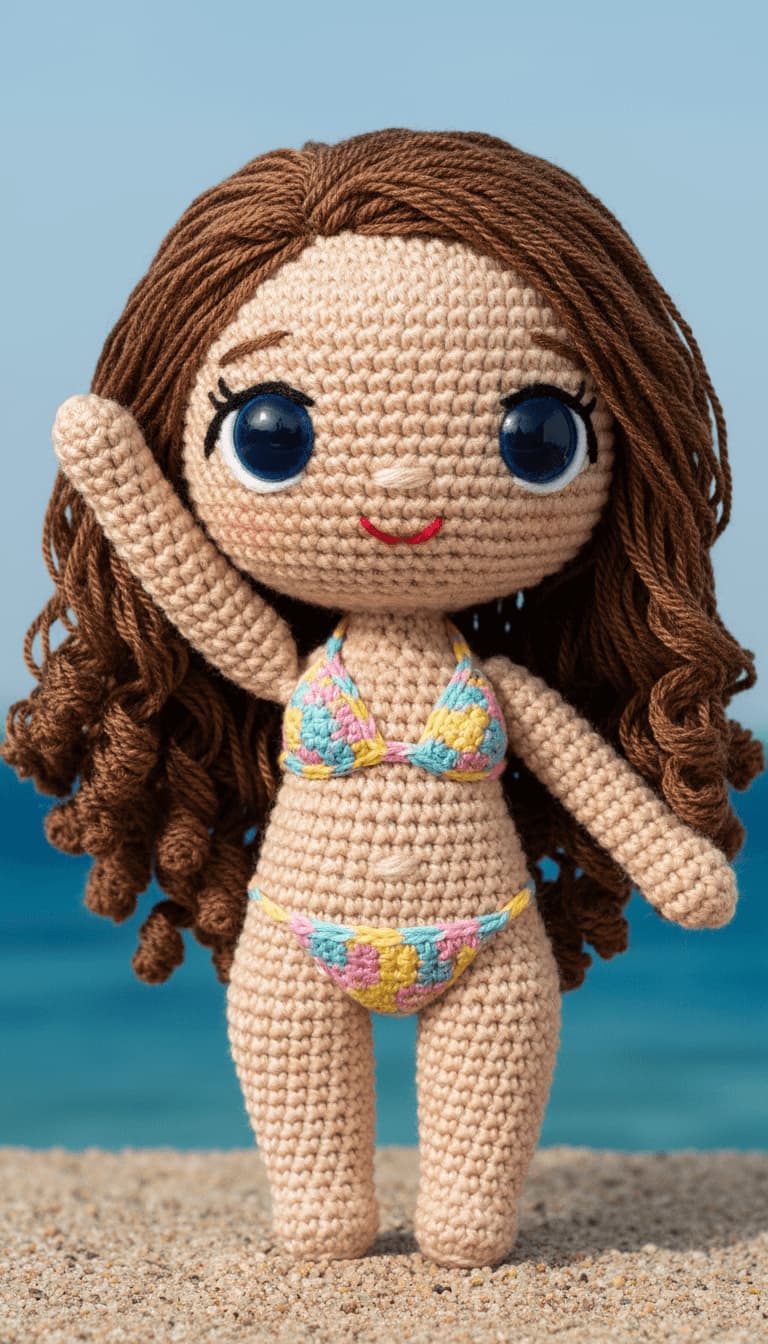
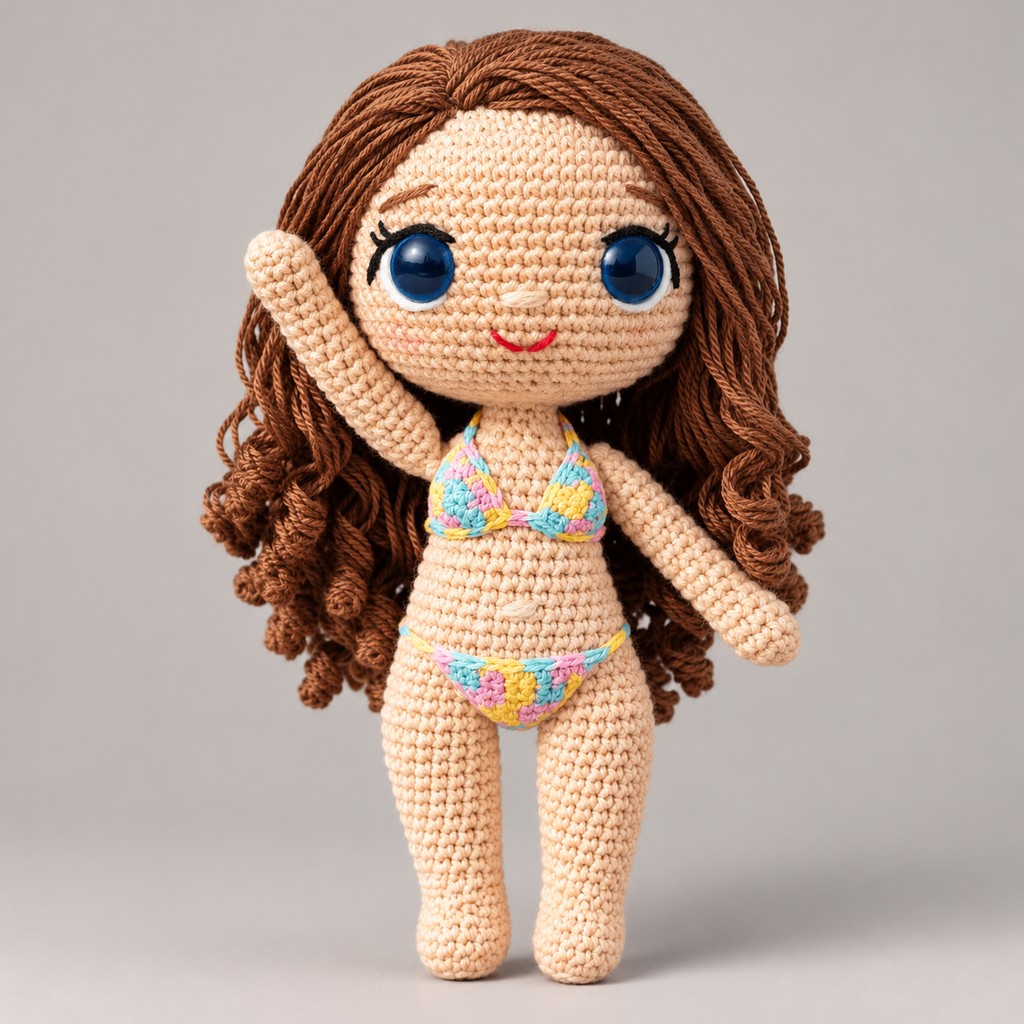
AI product photo · doll — Before
Before
AI product photo · doll — After
After

AI product photo · doll

The product is untouched; only the lighting becomes studio-clean
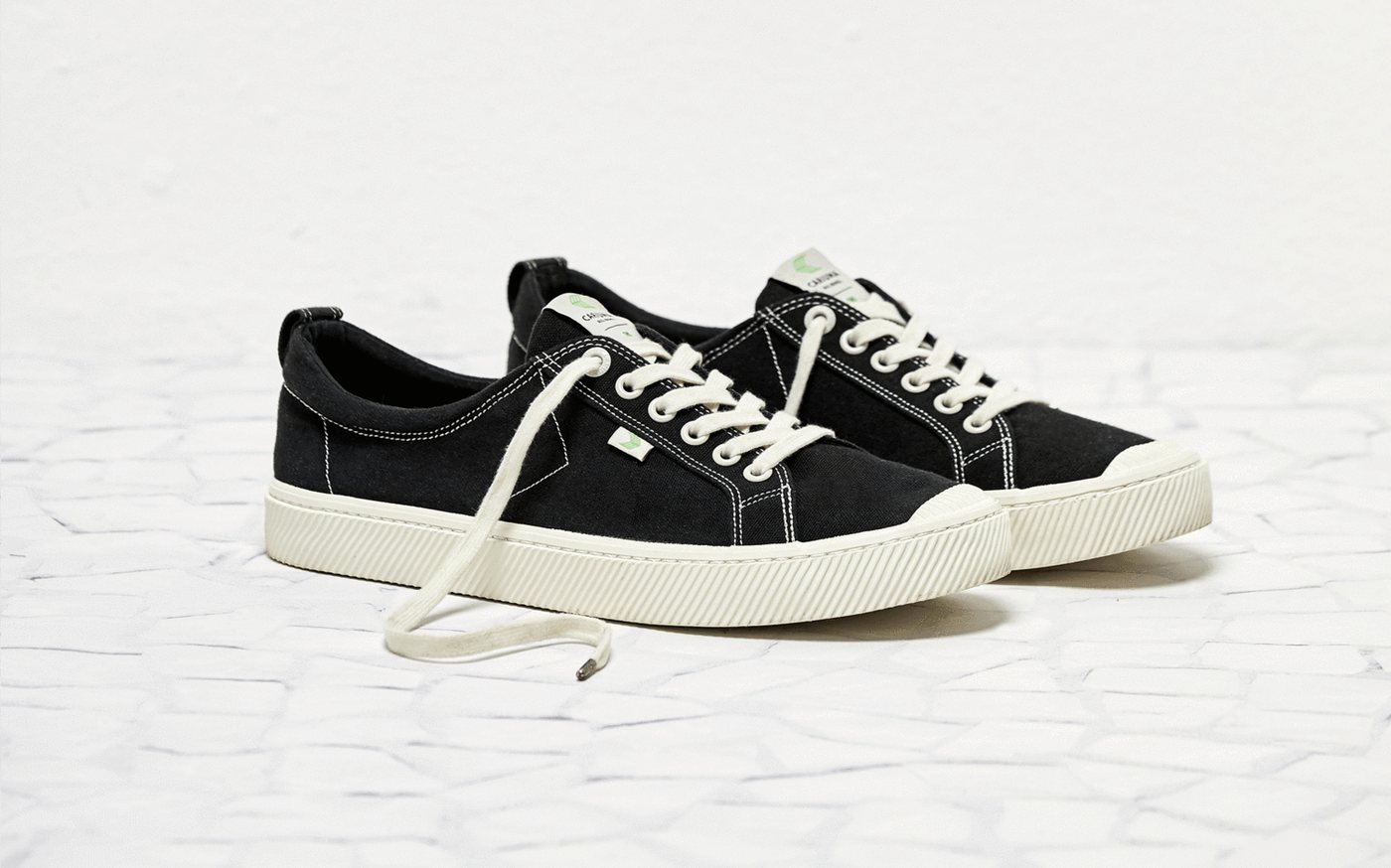
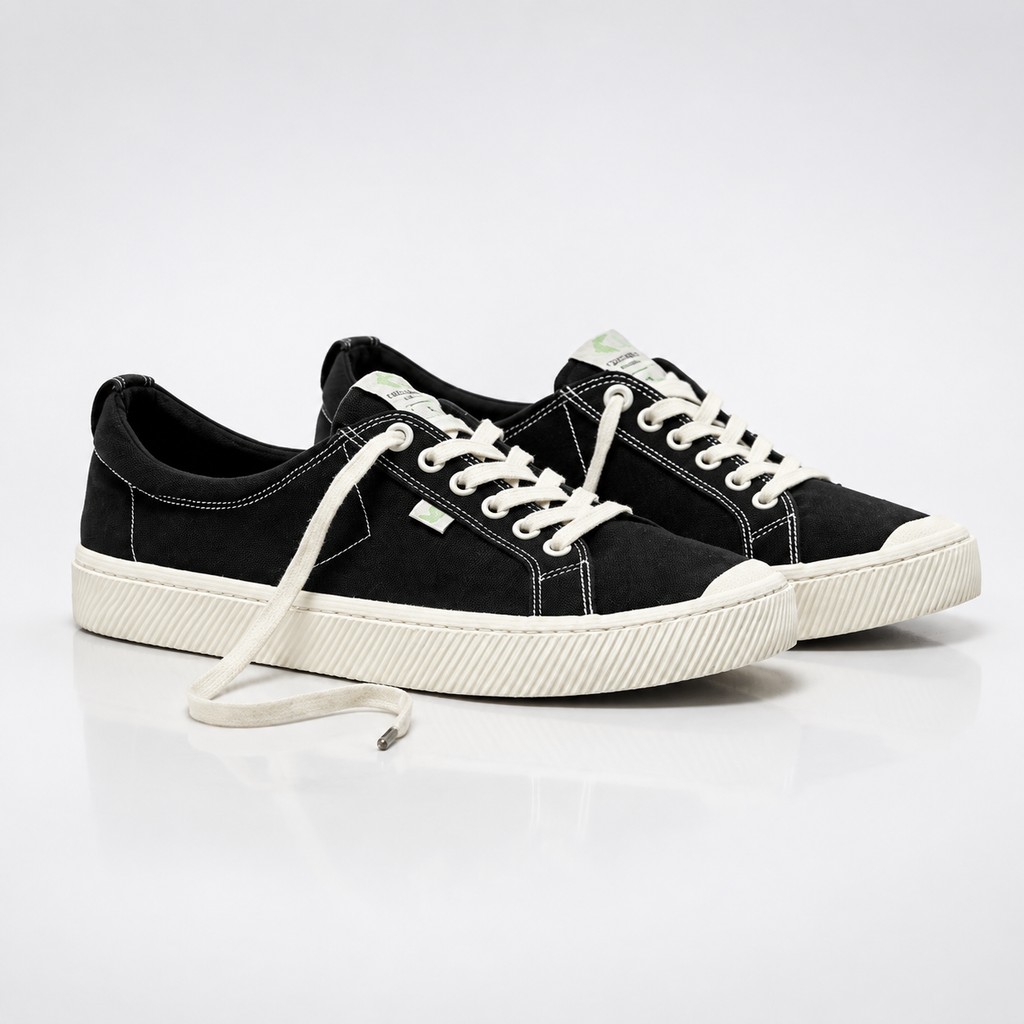
AI product photo · sneaker — Before
Before
AI product photo · sneaker — After
After

AI product photo · sneaker

Shape and detail stay; background and lighting are rebuilt

Built for listings

Product stays accurate

Shape, proportions, logos and label text are protected, so the photo still matches what ships.

Studio lighting

Soft key light, subtle shadow and reflection replace the kitchen-table shot.

Borrow a scene

Repeat the same surface, backdrop, lighting and composition instructions to keep a whole catalogue visually consistent.

01

Upload a picture

Pick a photo, or start from one of the examples below.

02

Adjust the settings

Choose the options you need; the prompt can stay empty.

03

Generate and compare

Check the result and download it when you are happy.

How to use Product Photography

This focused page uses the same editing flow as the AI Image Editor.

  1. 01

    Upload or import a relevant example

    Upload a JPG, PNG, or WEBP file, or start with an example selected for this tool.

  2. 02

    Choose Product Photography and refine the request

    Use a preset for the current tool and add a specific instruction when needed.

  3. 03

    Generate, compare, and continue editing

    The result joins the version timeline so you can restore the original, use another tool, or export the active version.

Related image editing needs

This page also covers these common tasks and search intents.

ai product photographyproduct photo studioecommerce product imageai product shot

Product Photography FAQ

Can I keep a consistent catalog look?+

Yes. Save one reference scene and reuse it across products; the model follows it for background and lighting while keeping each product unchanged.

Will the product keep its exact shape?+

The product is preserved as far as the model can see it, and the tool is instructed to keep shape, proportions and label text. New lighting can still change highlights and colour slightly, so compare against the original before you ship it.

What is the current Product Photography workflow?+

Upload an image, select the current tool, use a preset or add a specific instruction, and generate. The result joins the version timeline for continued editing or export.

Does Product Photography require a prompt?+

Not always. Start with a preset, then add text only when you need a specific area, style, colour, material, or other detail.

Can I continue with another image tool afterward?+

Yes. A generated version becomes the active image, ready for object removal, text replacement, background changes, outpainting, or another edit.

How many credits does Product Photography use?+

The generate button shows the exact credit cost for the current task and foundation model before you confirm generation.

Need something else?

Browse every image tool, or start from a blank prompt in the AI Image Generator.

All image tools