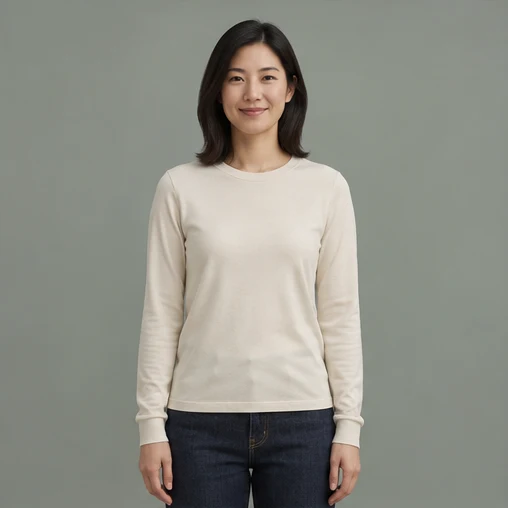
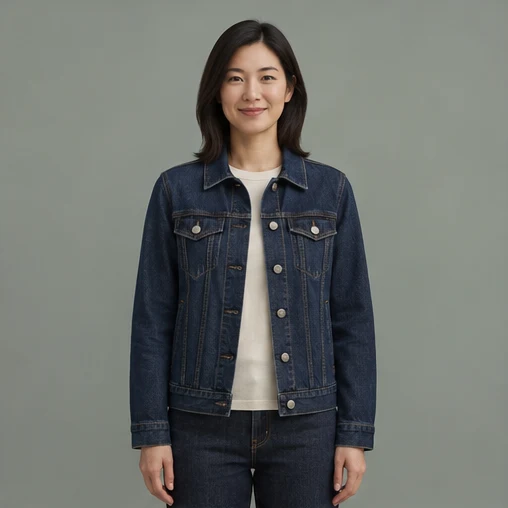
AI clothes changer · denim jacket
Only the clothes change; face, pose and background stay
Upload one portrait, choose a business, casual, formal or sportswear preset, or describe the colour, cut and material before generating a new, fully clothed outfit version. Use only images you own or have permission to edit.
Switch to another tool — the current picture comes along.
See what each tool does before you start.
Only the clothes change; face, pose and background stay
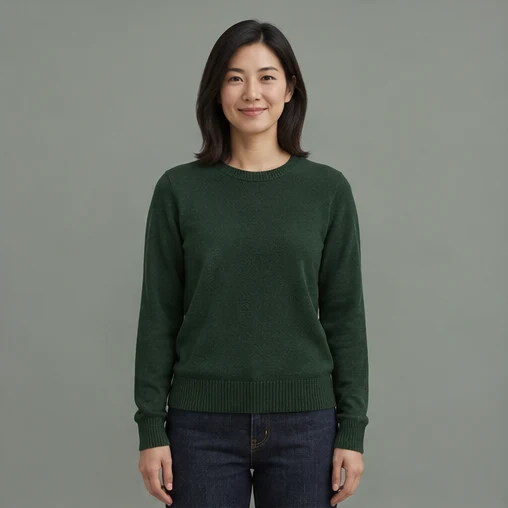
Try a forest-green sweater on the same portrait
Clothes changing is a two-image edit: the first photo sets the person, the second sets the garment, and everything the model draws has to agree with both. That is why identity and fit stay believable instead of a flat cut-out being pasted over the body.
The face, hair, body shape and pose from your first photo are preserved, so the preview looks like the same person rather than a generic model. Identity is the strongest constraint in the instruction, which is why a close-up of the face usually survives a garment swap intact.
Describe the cut, colour, pattern and material in the prompt so the new folds and drape follow the person's pose naturally.
Yes. Keep the person photo and swap only the garment: face, pose, background and lighting stay identical, so ten outfits come from one session instead of ten shoots. Reuse the same prompt and settings so the whole series stays visually consistent.
Pick a photo, or start from one of the examples below.
Choose the options you need; the prompt can stay empty.
Check the result and download it when you are happy.
This focused page uses the same editing flow as the AI Image Editor.
Upload or import a relevant example
Upload a JPG, PNG, or WEBP file, or start with an example selected for this tool.
Choose Change Outfit and refine the request
Use a preset for the current tool and add a specific instruction when needed.
Generate, compare, and continue editing
The result joins the version timeline so you can restore the original, use another tool, or export the active version.
This page also covers these common tasks and search intents.
First the person, then the garment — the built-in instruction refers to them in that order, so swapping the two produces a result you will have to throw away. If all you have is the outfit already worn, it still works as the garment reference, but expect its own folds, shadows and body shape to come along.
The background, lighting and framing of the first photo stay unchanged. This tool is for comparing fully clothed outfit variations. Use the image editor separately when you need a background edit.
No. This tool keeps the background, lighting, framing and face unchanged while it restyles visible clothing. Use the image editor separately for a background change, which counts as another generation.
Upload an image, select the current tool, use a preset or add a specific instruction, and generate. The result joins the version timeline for continued editing or export.
Not always. Start with a preset, then add text only when you need a specific area, style, colour, material, or other detail.
Yes. A generated version becomes the active image, ready for object removal, text replacement, background changes, outpainting, or another edit.
Browse every image tool, or start from a blank prompt in the AI Image Generator.