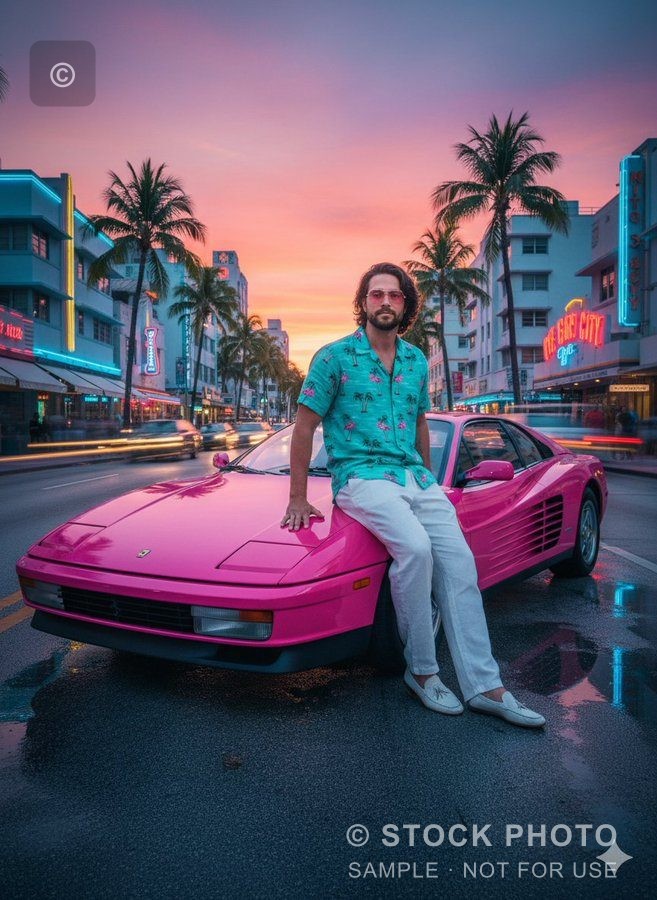
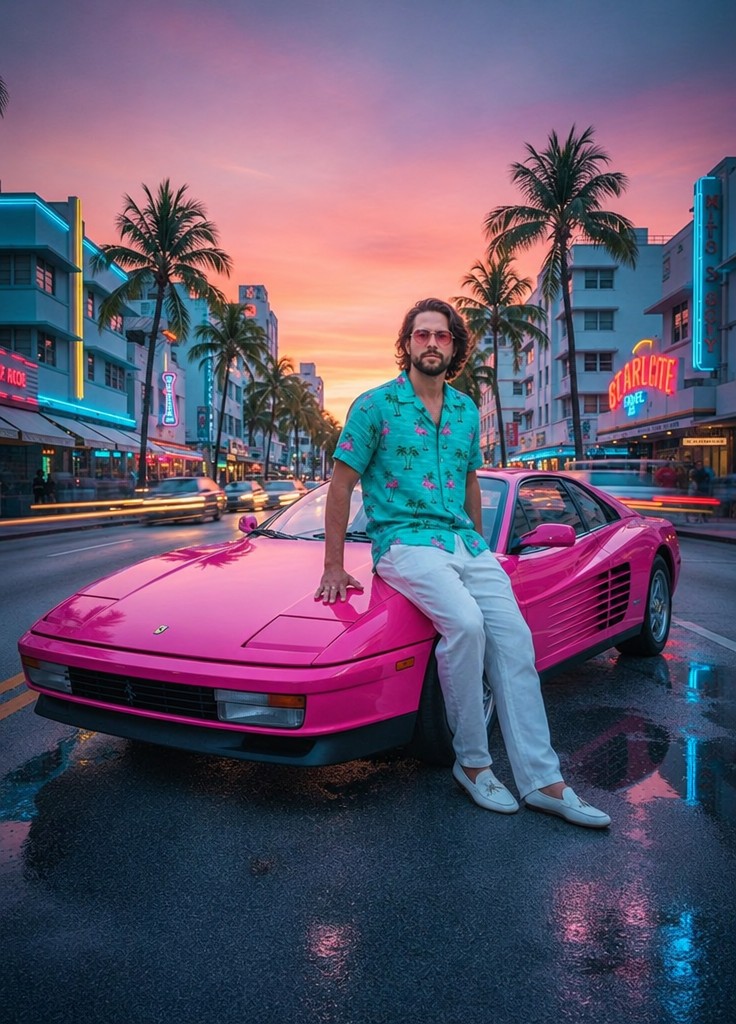
Remove objects, replace text, change backgrounds, restyle outfits, expand photos, and enhance images in one workspace.
Compare object removal, AI outpainting, and scene editing results. Upload your own image and continue refining it on one version timeline.
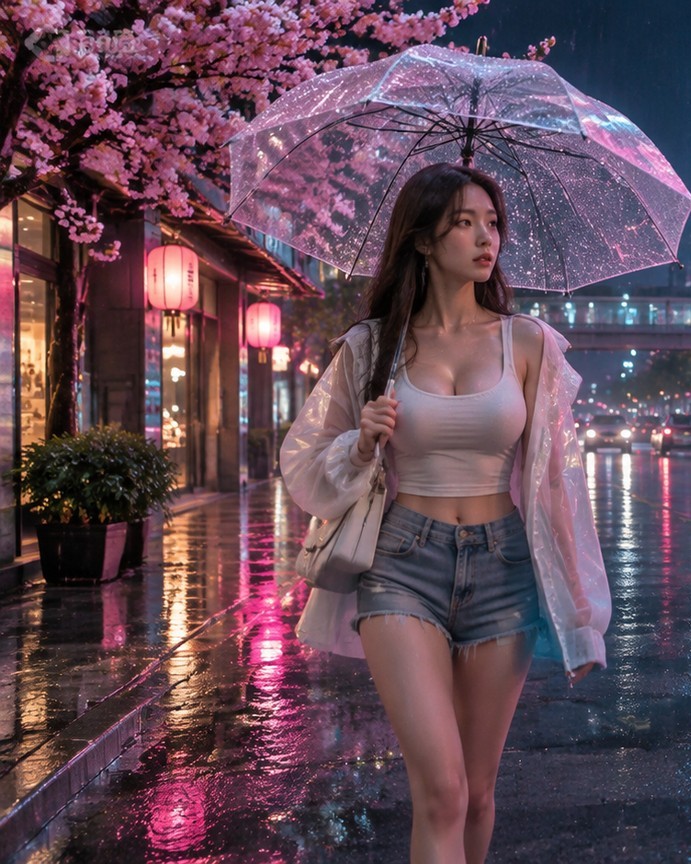
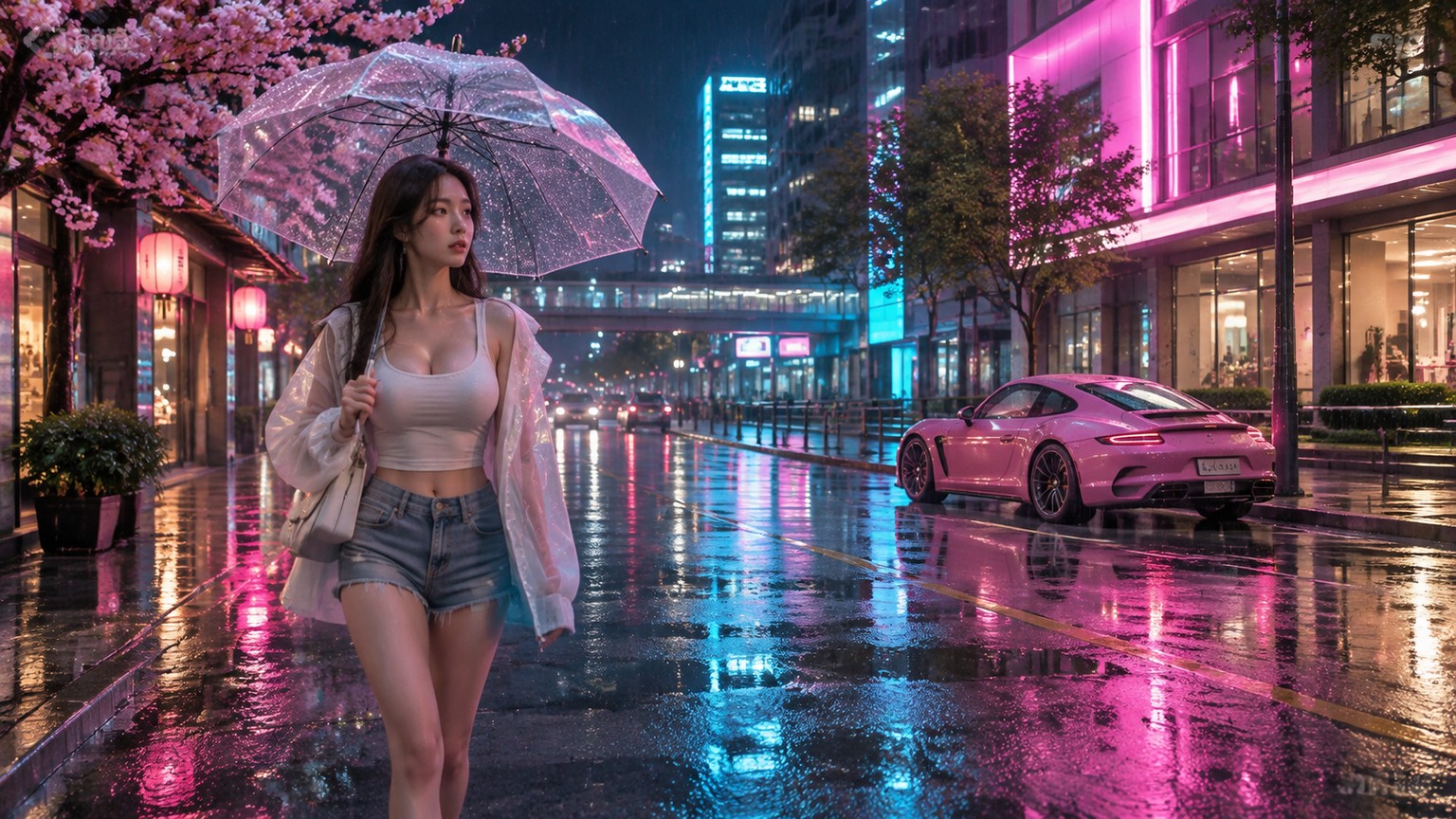
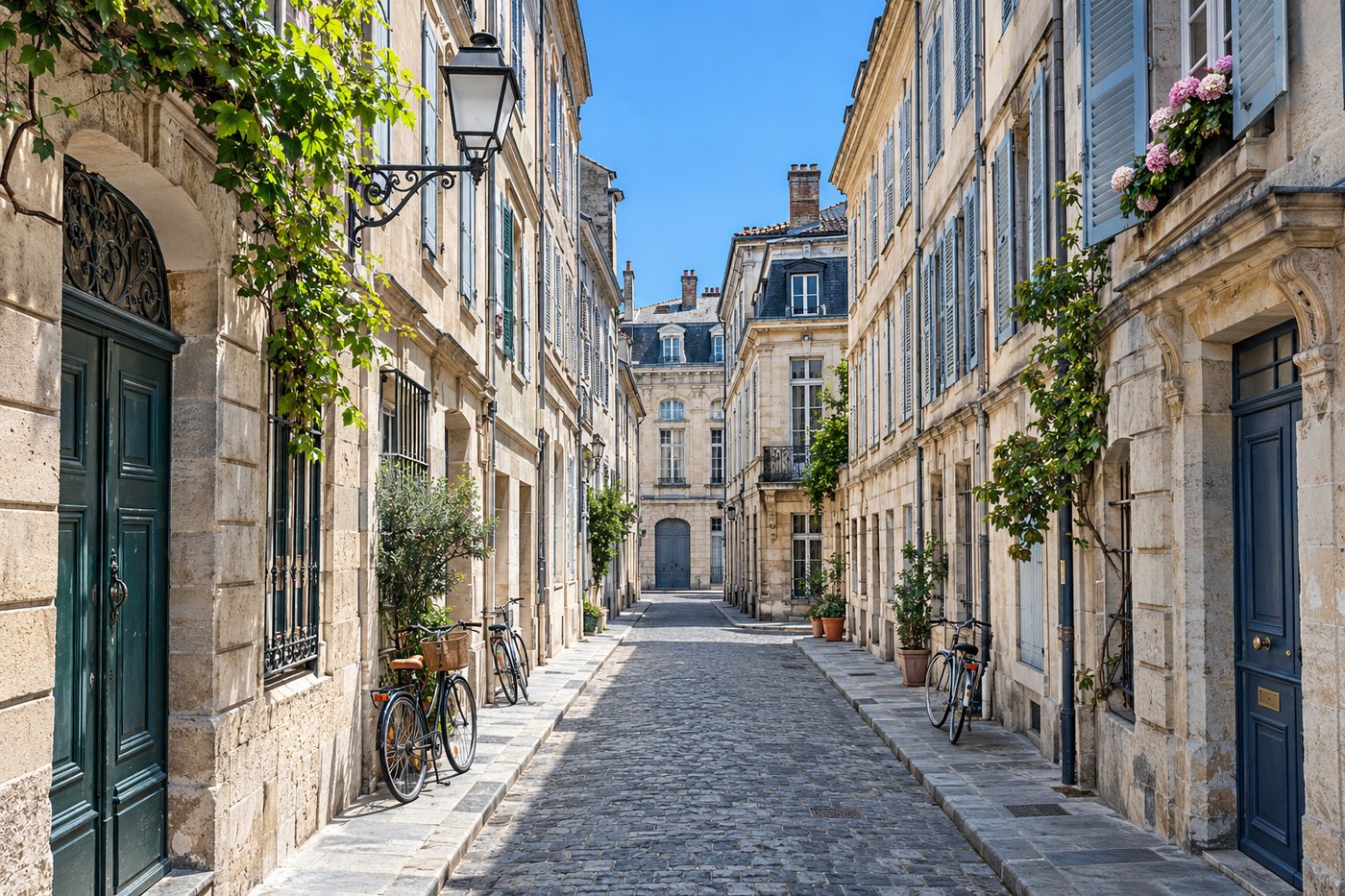
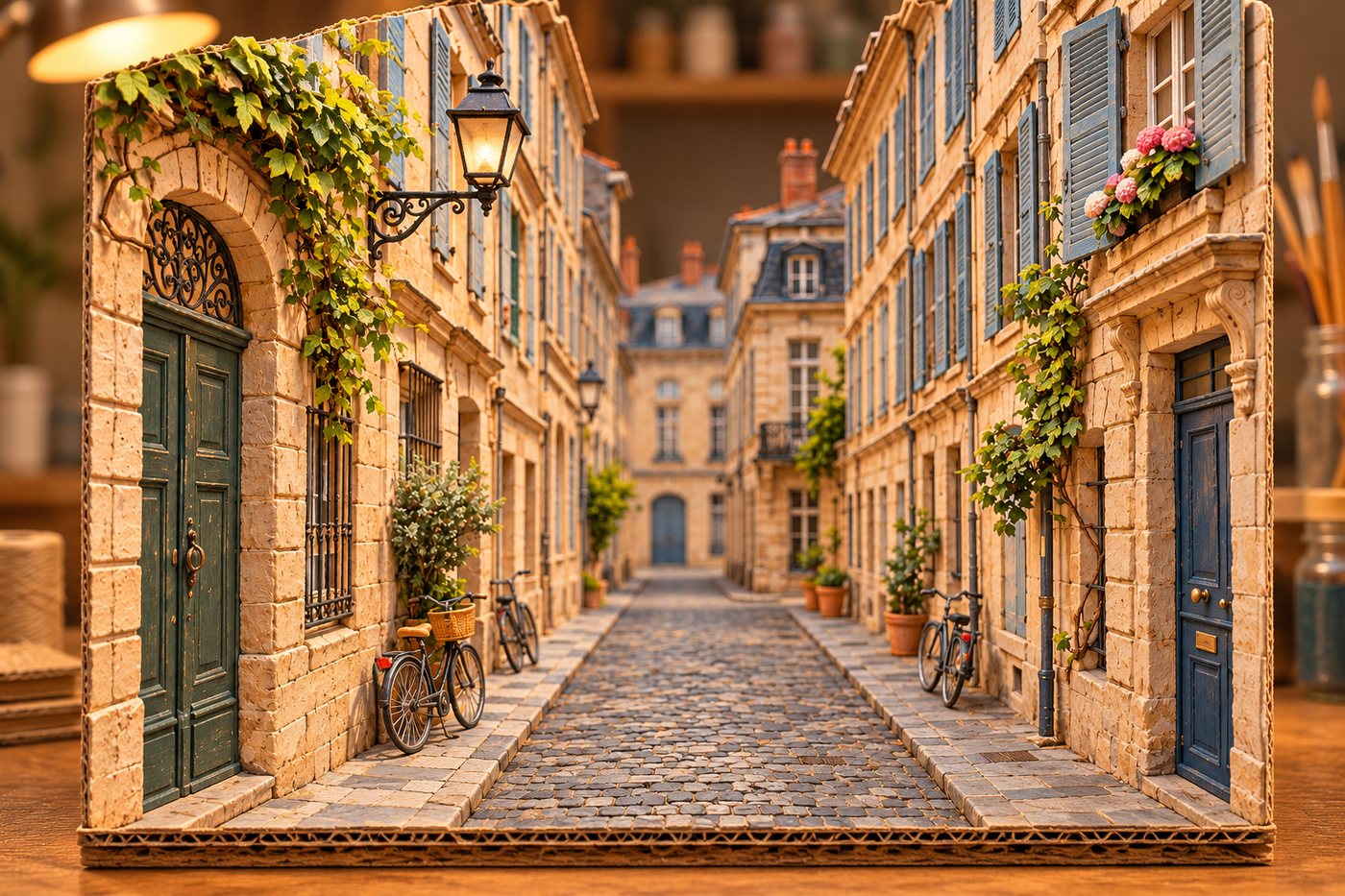
Stop uploading the same photo to separate tools. Choose an edit, generate a version, continue refining it, and export in the format you need.
Brush or lasso unwanted objects, watermarks, and text while AI reconstructs the background.
Use image OCR to locate and replace individual lines in posters, product images, and screenshots.
Preserve a person or product while creating a studio, office, outdoor, or custom background.
Restyle clothing while preserving the face, pose, body proportions, and surrounding scene.
Choose a target aspect ratio and direction to outpaint a substantial new area around the photo.
Improve sharpness, texture, and detail in blurry or low-resolution images.
Detect the main subject, remove the full background, and export a transparent PNG.
Create commercial product scenes or redesign interiors without losing structure and perspective.
Go from upload to export in four steps, with every result preserved on the version timeline.
Import a JPG, PNG, or WEBP file, or start from an example.
Select object removal, text replacement, outpainting, a background change, or another AI tool.
Mark an area, choose a preset, or describe the exact edit, then create a new version.
Compare versions on the timeline and download PNG, JPG, or WEBP.
Use the AI image editor as your main workspace, or open a focused tool for task-specific examples, guidance, and answers.
Remove a specific object and rebuild its background
AIRecognize and replace text inside an image
AIOutpaint photos to a new aspect ratio
AIClear watermarks, logos, and overlaid text
AIRepair scratches, fading, blur, and damage
AICreate ecommerce images and commercial scenes
FreeCrop images to popular ratios for free
FreeReduce JPG, PNG, and WEBP file size
AIKeep the subject and create a natural new background
AIReplace clothing while preserving identity and pose
AIImprove blurry and low-resolution image quality
AIIsolate the subject on a transparent background
AIAdjust hair, makeup, expression, and accessories
AITurn photos into paintings, anime, or illustrations
AIRedesign a room while preserving its structure
FreeConvert PNG, JPEG, and WEBP formats locally
Answers about multi-step editing, OCR text replacement, AI outpainting, file formats, and original-image protection.
It combines object removal, text replacement, background changes, outfit editing, image expansion, enhancement, background removal, photo restoration, portrait editing, style transfer, product photography, and room design in one workspace.
Yes. Every generated result becomes a version on the timeline. Continue from any version or return to the original at any time.
Upload an image, mark the unwanted area with the brush or lasso, and generate a new version. The AI reconstructs the selected area from its surroundings.
Run OCR first. Recognized lines appear in the right panel. Select a line on the canvas, edit its matching field, and replace several lines in one generation.
The target ratio changes the real output dimensions. Choosing 21:9, 16:9, or a portrait ratio gives the model room to create a clearly visible new outer area.
Upload JPG, PNG, or WEBP. Export the active version as PNG, JPG, or WEBP, with adjustable quality for JPG and WEBP.
No. The version timeline preserves the original and every generated result. Exporting downloads only the active version.