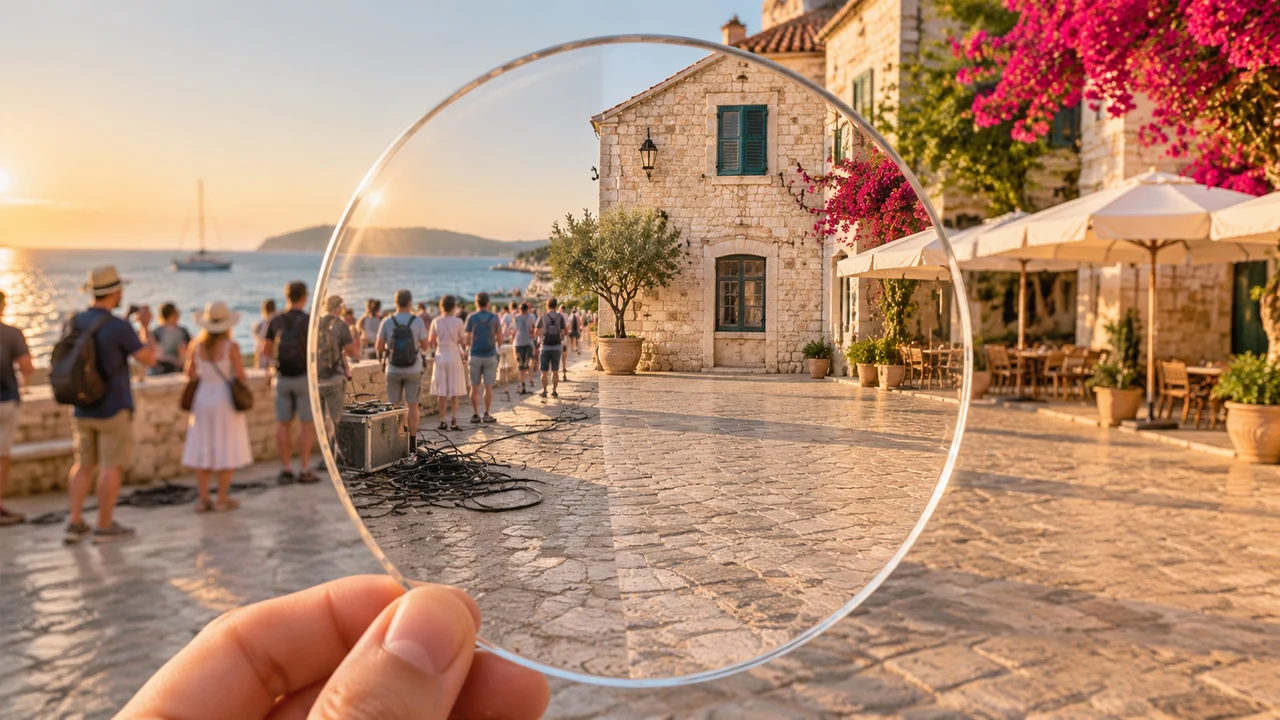
Cloning stamps and healing brushes work well on flat sky or plain drywall, but they quickly fall apart when a watermark crosses a person’s face, or when a parked car blocks patterned cobblestones and architectural shadows. Context-aware AI cleanup solves this by reading the surrounding geometry, perspective lines and lighting direction before reconstructing what belongs behind the unwanted element.
In Imagine AI, two dedicated workspaces handle image cleanup: the Remove Watermark tool for semi-transparent overlays, logos, date stamps and captions, and the Object Removal tool for tourists, power cords, table clutter, stains and background distractions. Both tools run on GPT Image 2.6 to preserve full-frame sharpness while rebuilding only the targeted area.
Remove Watermark vs Object Removal: Which Tool Fits Your Task?
Picking the right entry point from the AI Image Tools hub ensures the model starts with the right preservation instructions:
| Cleanup Task | Best Imagine AI Tool | What the Tool Prioritizes |
|---|---|---|
| Semi-transparent stock proofs (that you own or have rights to edit), corner logos, proof stamps, camera date stamps | Remove Watermark | Separates foreground overlay opacity from underlying skin, fabric or texture without shifting colors. |
| Passers-by, photobombers, trash cans, power lines, desk cables, coffee stains, wall outlets | Object Removal | Erases solid 3D objects and their cast shadows, then continues floor grain, foliage or masonry behind them. |
| Replacing a headline or sign while keeping the font style instead of erasing it | Text Replace | Swaps the wording in place while matching original typography, weight and perspective. |
| Extending tight borders after cropping out an edge distraction | Expand Image | Outpaints new canvas around the frame so you do not lose subject scale. |
(Always make sure you have the rights or license to modify an image before removing proof marks or logos.)
How to Remove Watermarks, Date Stamps and Captions Cleanly
When a timestamp, proof overlay or corner caption sits on top of detailed textures—such as woven linen, brick, hair or water ripples—a vague prompt can cause the model to redraw the entire image. Keep your instruction inside focused on location and background reconstruction:
1. Corner Logo or Timestamp Cleanup
Remove the orange camera date stamp in the bottom-right corner and reconstruct the natural cobblestone texture and warm evening shadow underneath. Keep the rest of the street scene, colors and framing completely unchanged.
2. Center Proof Overlay Across a Subject
Remove the semi-transparent diagonal watermark across the center of the image. Reconstruct the continuous wool jacket texture, lapel seam and soft studio lighting beneath the letters without altering the person’s face or pose.
3. Subtitle or Caption Bar Removal
Erase the white caption text near the bottom edge and restore the continuous wooden tabletop grain behind it. Do not crop the image or change any other object.
If you want to replace the text with new copy rather than deleting it completely, switch to the or read our for typography preservation tips.
How to Erase Tourists, Clutter and Distractions with AI Object Removal
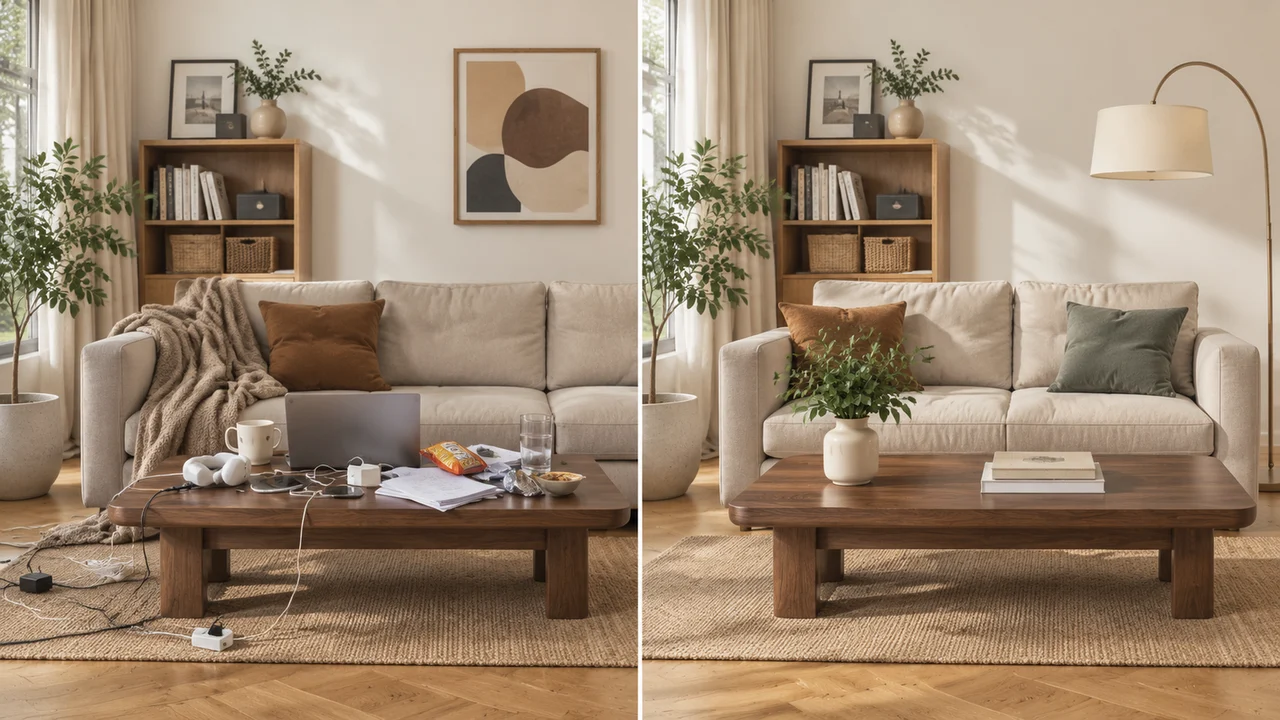
When cleaning up travel photos, real estate listings or product shots in the , remember to mention both the object and its shadow or reflection. Leaving a dark cast shadow on the floor after erasing a chair makes the edit look artificial.
Copyable Object Removal Prompts by Scenario
-
Travel & Architecture (Removing Tourists and Gear):
Remove the tourists standing along the stone wall on the left and the black cable case on the courtyard floor. Reconstruct the continuous limestone blocks, sunlit mortar lines and distant sea horizon. Keep the main building, olive tree and outdoor café umbrellas unchanged.
-
Real Estate & Interior Design (Decluttering Rooms):
Remove all laptop chargers, power strips, snack wrappers and loose papers from the walnut coffee table and woven rug. Reconstruct the clean walnut wood grain and jute rug weave. Keep the sofa, cushions, framed wall art, indoor plant and window light identical.
-
E-Commerce & Apparel (Removing Tags and Studio Rigging):
Remove the plastic price tag hanging from the sleeve and the metal light stand visible at the far right edge. Reconstruct the seamless neutral studio backdrop. Keep the model and garment unchanged.
If you are redesigning the entire room rather than just clearing clutter from the table, pair Object Removal with the or refine product setups using our .
When to Use Masked Inpainting vs Text-Guided Cleanup
GPT Image 2.6 in Imagine AI supports both instruction-driven cleanup and masked region editing:
- Use instruction-driven cleanup in or when the target is easy to name (“the red trash can on the left”, “the date stamp in the lower corner”) or repeats across several small spots.
- Use a painted mask inside the when a scene contains five similar objects and you only want to remove one specific item without touching the others. Paint over the exact object plus a small margin around its shadow, then describe the background material that should fill the transparent region.
Quick Verification Checklist Before Exporting
Before downloading your cleaned image, zoom in to 100% and check four things:
- Repeating straight lines: do floorboards, window frames, tiles and horizon lines connect straight across the healed area without bending?
- Shadow and reflection cleanup: did the object’s floor shadow or glass reflection disappear along with the object?
- Unchanged areas: verify that faces, product labels and background details outside the edit zone remained pixel-faithful.
- File size and format: if you are uploading the cleaned photo to a website or store, run it through the free local or tool to export an optimized WebP file.
Try cleaning your first photo now in the or the .
