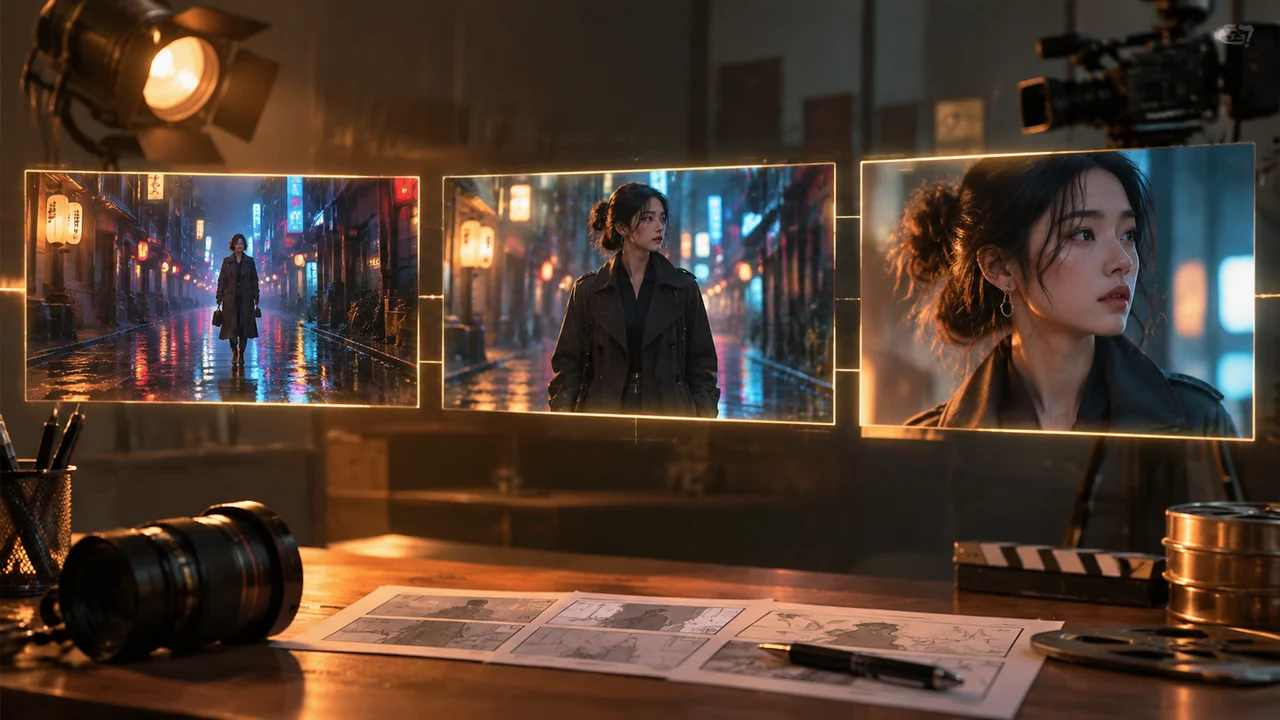
Kling 4.0 is built for creators who need cinematic camera work, physical motion stability and connected shot progression rather than random five-second visual loops. Instead of hoping a single sentence produces a coherent clip, you can steer Kling 4.0 with structured multi-shot prompts, start and end keyframes, or up to three character and environment reference images.
You can run Kling 4.0 directly in Imagine AI’s Kling 4.0 video workspace or switch between models inside the AI video generator. Depending on the active configuration, Kling 4.0 supports 3 to 30 second durations, 720p and 1080p resolution, and widescreen (16:9, 21:9), vertical (9:16) or square (1:1) aspect ratios.
What Makes Kling 4.0 Different for Cinematic AI Video Generation
Most text-to-video failures happen when a prompt asks the model to invent the subject, the environment, the lighting and a complex camera move all at once. Kling 4.0 handles physical momentum—such as coat fabric swinging during a turn, rain reflections on wet asphalt or a vehicle rounding a corner—much more predictably when you separate scene setup from temporal progression.
Key capabilities available in the Kling 4.0 workflow include:
- Three generation scenes: Text to Video, Image to Video, and Reference to Video;
- Flexible clip durations: 5, 10, 15, 20 or 30 seconds for single shots or multi-beat sequences;
- First and last frame anchoring: lock where the camera starts and how the shot settles with end-frame control inside Image to Video;
- Up to 3 reference images: keep a character, product or location consistent across separate generations;
- Cinema aspect ratios: native
21:9anamorphic framing alongside standard16:9,9:16and1:1.
How to Structure a Kling 4.0 Multi-Shot Video Prompt
When generating a 10 to 30 second clip in , writing a single run-on paragraph often causes the action to stall halfway through. Break your prompt into clear time beats or camera setup blocks instead:
- Global look and subject lock — define the character appearance, lens feel, color palette and lighting once at the top.
- Beat 1 (Establishing action, 0–5s) — state the starting framing, initial subject action and primary camera direction.
- Beat 2 (Mid-shot progression, 5–10s) — describe how the camera transitions or how the subject interacts with the environment.
- Beat 3 (Settling frame, 10–15s+) — specify the final pose, focus pull or horizon hold so the clip ends cleanly for editing.
Copyable Multi-Shot Prompt Template
Global style: Cinematic 35mm anamorphic film look, warm tungsten streetlamps against cool rain-soaked Tokyo alley reflections, shallow depth of field, natural motion blur. Beat 1: Wide tracking shot following a traveler in a charcoal trench coat walking briskly away from the camera through gentle rain. Beat 2: Smooth camera arc to a medium side profile as the traveler pauses under a glowing paper lantern and looks toward a passing train reflection. Beat 3: Slow push-in to a close-up portrait as the traveler turns slightly toward the lens, coat collar lifted, warm rim light on the face, steady final hold.
Using First and Last Keyframes for Controlled Camera Transitions
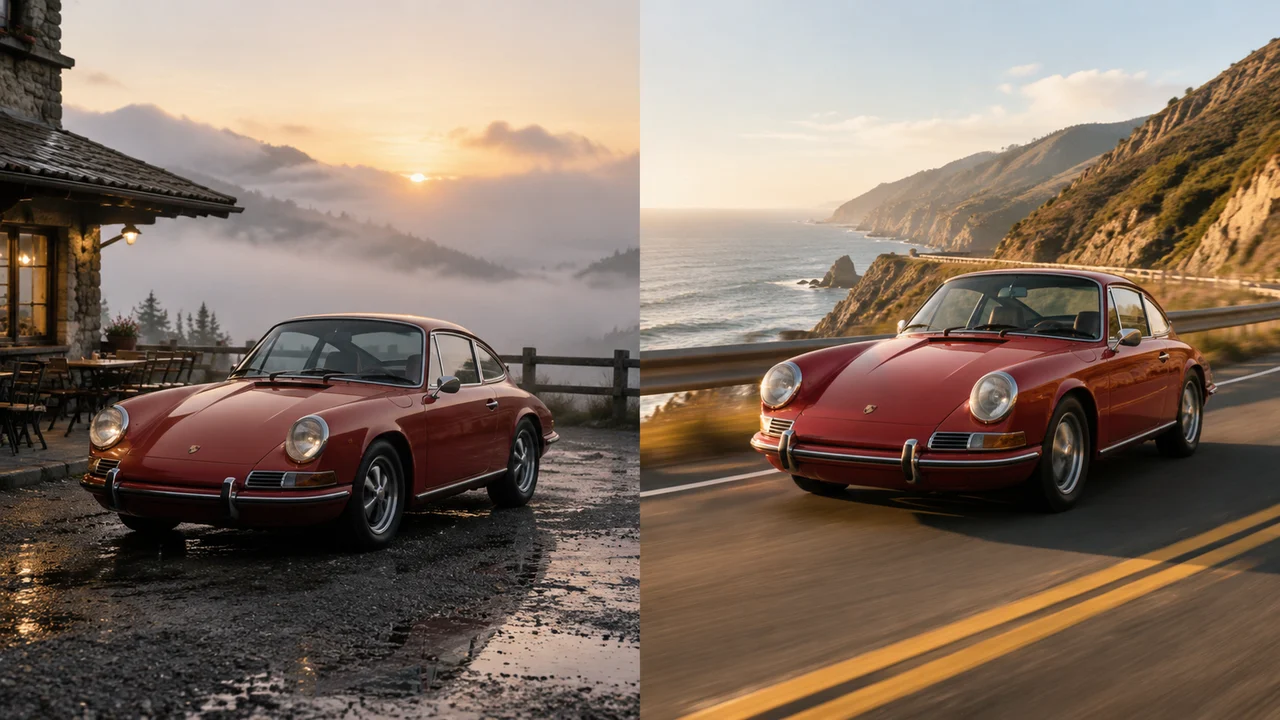
If you already know how a shot must begin and end, do not rely on text alone. Upload a start frame and a last frame in the , where Kling 4.0 exposes end-frame control.
For smooth keyframe interpolation in Kling 4.0:
- Keep the subject identity identical between both frames—generate the first frame in the using our , then create the end frame as an image edit so clothing, proportions and lighting match.
- Avoid impossible 180-degree scene jumps on short 5-second clips; give a larger location or lighting shift at least 10 seconds so the transition feels motivated.
- Describe the bridge action, not just the static frames: tell Kling 4.0 how the subject gets from Frame A to Frame B (for example, “the camera cranes upward while the red coupe accelerates onto the coastal highway”).
For more general principles on preparing still frames before animation, see our .
Reference-to-Video Workflow: Keeping Characters Consistent Across Clips
When you are building a storyboard or product commercial with multiple separate clips, switch to and select Kling 4.0. You can attach up to 3 reference images to anchor the visual world:
- Reference Image 1 (Character / Subject): a clear, well-lit portrait or three-quarter view of the protagonist or hero product;
- Reference Image 2 (Outfit / Prop): the specific garment or object that must stay recognizable;
- Reference Image 3 (Environment / Mood): the architectural setting or lighting reference.
Reference-to-Video Prompt Example
Using the character from Reference 1 wearing the dark trench coat from Reference 2 inside the neon alley from Reference 3: medium dolly-in shot at eye level as the character opens a brass compass, warm golden light reflecting on their palms, steady rain in the background, photorealistic 1080p cinema look.
Choosing Between 720p and 1080p, Aspect Ratios and Durations
Because Kling 4.0 is billed per second of generated video, matching resolution and duration to your stage of production saves credits:
| Workflow Stage | Recommended Settings | Why It Works Best |
|---|---|---|
| Motion & camera blocking test | 720p, 5s, 16:9 or 9:16 | Tests whether the camera move and subject speed work before committing to long renders. |
| Social vertical story / reel | 1080p, 10s, 9:16 | Full vertical sharpness with enough time for a two-beat hook and reveal. |
| Widescreen narrative sequence | 1080p, 15s–30s, 21:9 or 16:9 | Delivers cinematic framing and sustained multi-beat choreography. |
Note that Kling 4.0 focuses purely on visual motion and does not generate native audio tracks. If your project requires synchronized dialogue or ambient sound effects out of the box, compare it with or check our .
Troubleshooting Common Kling 4.0 Prompt Issues
Why does the camera stop moving halfway through a 15-second clip?
A prompt that only describes a single short action (“a woman drinks coffee”) finishes that action in the first 4 seconds. Add a second and third action beat or a continuous camera instruction (“slow 15-second orbital tracking shot from left profile to front three-quarter view”).
Why did the subject’s face morph during a fast turn?
Extreme rotational speed forces the model to guess unseen angles. Slow the turn down in your prompt (“turns her head slowly toward the window”) and upload a clear reference photo in or .
How do I get cleaner start frames before animating in Kling 4.0?
Remove stray background objects, watermarks or text overlays before uploading your start image. You can clean up source stills in seconds with the or so Kling 4.0 does not animate unwanted clutter.
